Add a New Mobile Profile
In the Accounts module, you can create Mobile Profiles to customize user access and settings for the Xsponse platform. Mobile Profiles define how users interact with the application on mobile devices, allowing for tailored experiences based on specific roles and functionalities.
To Create a New Mobile Profile
- Go to Accounts > Mobile Profile.
- Click Add Profile to create a new mobile profile.
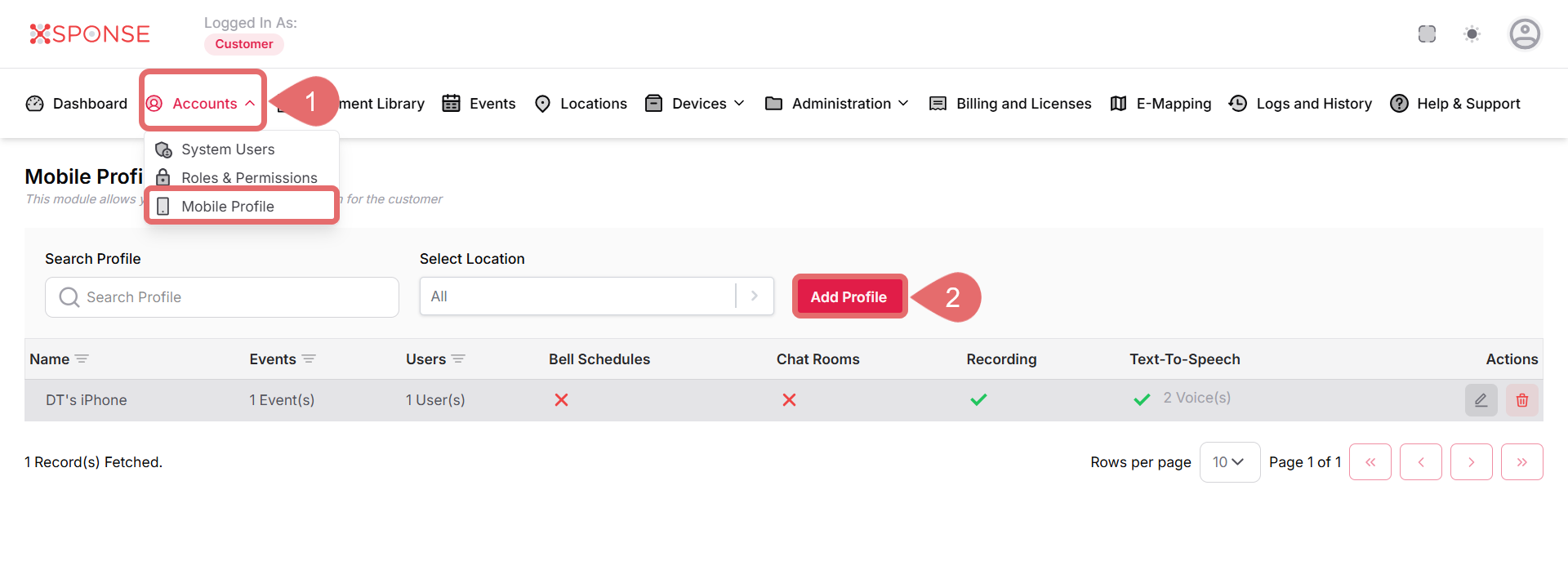
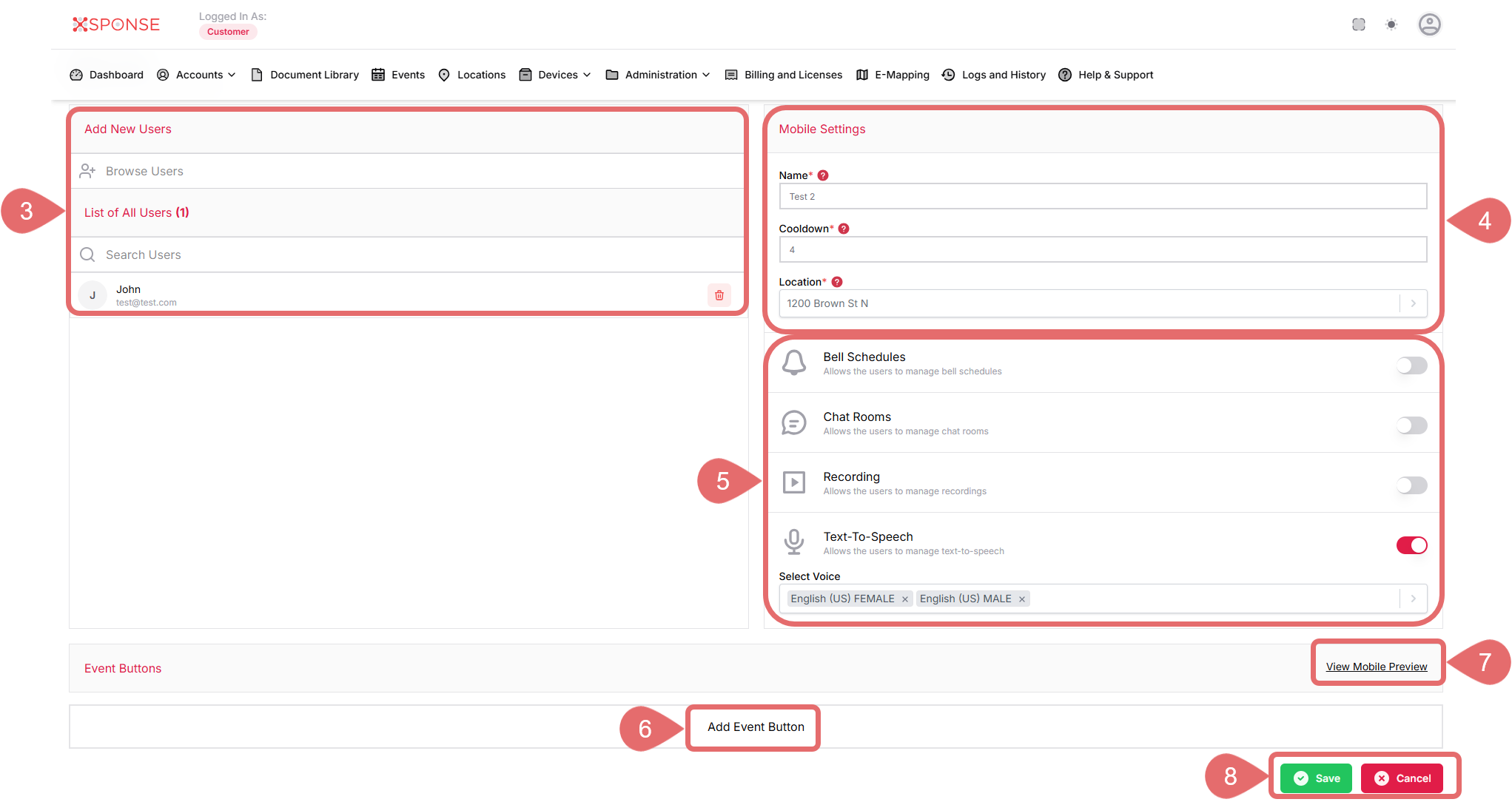
- Select Add New Users icon. The screen always displays the All Users List section, which includes an integrated search bar.
In this section:- List of All Users: Displays all users that have already been added to the system. Each entry has a delete icon you can use to remove a user if needed.
- Search Users: Use the search bar to quickly find specific users by entering their names, which is particularly helpful if there are many users in the list.
User RequiredTo save, you must add at least one user.
- Fill in the Required Information:
- Name: Enter a name for the mobile profile. This field is required.
- Cooldown: Specify a cooldown period in seconds. This field is required.
- Location: Choose an appropriate location from the dropdown list. This field is required.
- Configure additional settings using the toggles:
- Bell Schedules: Toggle to allow users to manage bell schedules.
- Chat Rooms: Toggle to allow users to manage chat rooms.
- Recording: Toggle to enable users to manage recordings.
- Text-To-Speech: Toggle to enable users to manage text-to-speech functionalities.
- If enabled, select a voice from the dropdown list of available options. Example:
- (US) FEMALE
- English (US) MALE
- (Optional): Click Add Event Button.
- Fill in the required information:
- Name: Enter a unique name for the event button. This field is required.
- Event: Select the event this button will trigger. This field is required.
- Icon: Choose an icon to represent the event. This field is required.
- Color: Select a color for the button. This field is required.
- Geolocation: Toggle to enable or disable geolocation for the event.
- Click the Delete Even Button to remove an existing event.

- Fill in the required information:
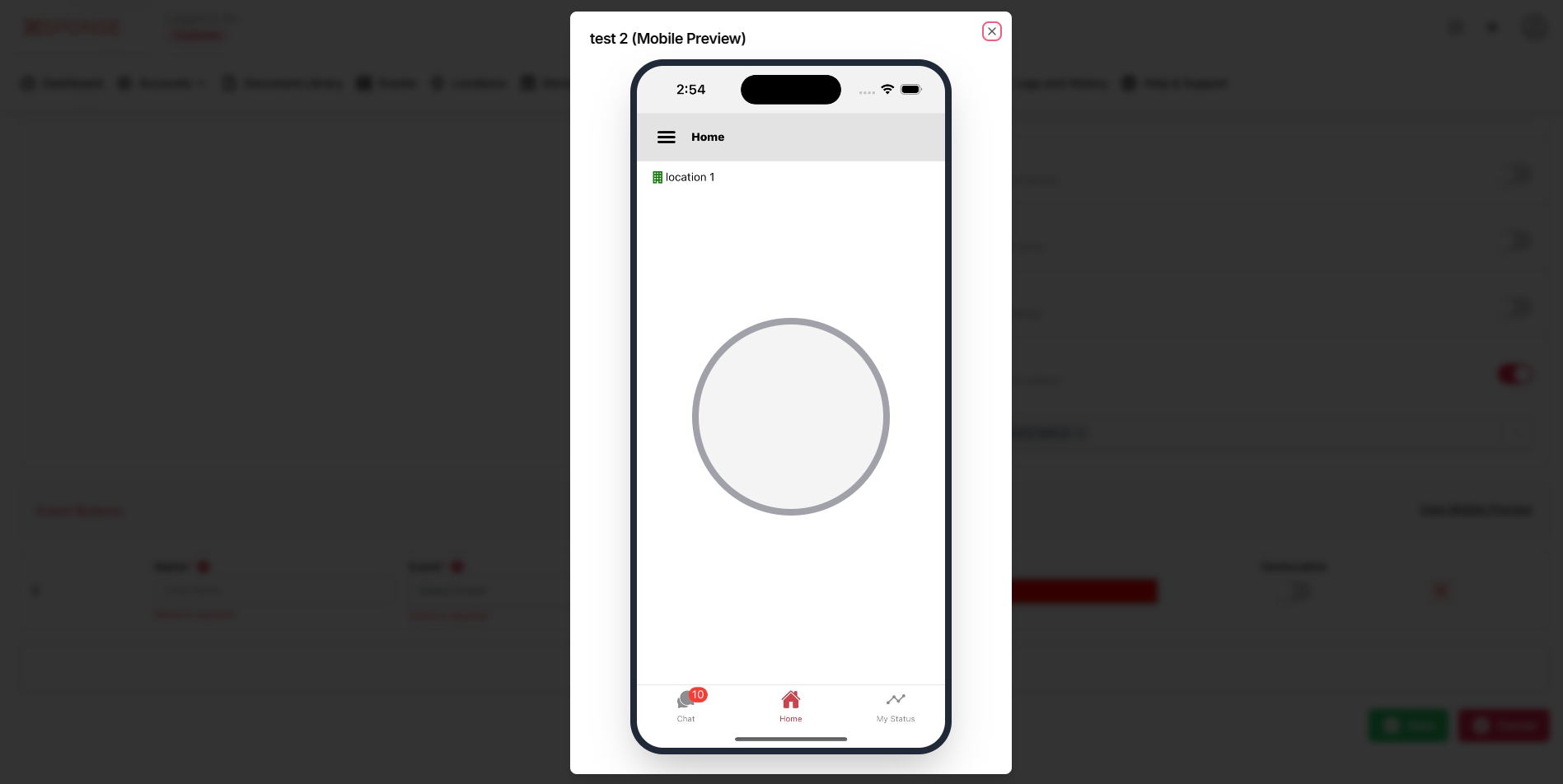
- Click View Mobile Preview to see how the profile and buttons will appear on a mobile device.
- Click Save to complete the process, or Cancel to discard the changes.
Once saved, the new mobile profile will be available for assignment and use according to the selected configurations.
See Also
To complement your knowledge of this process, check the following pages: